You can adjust the speed of the voice in two ways:
- Change the speed for the entire text using Voice Settings.
- Change the speed for specific words or sentences using SSML tags.
Adjusting the speed of the entire text
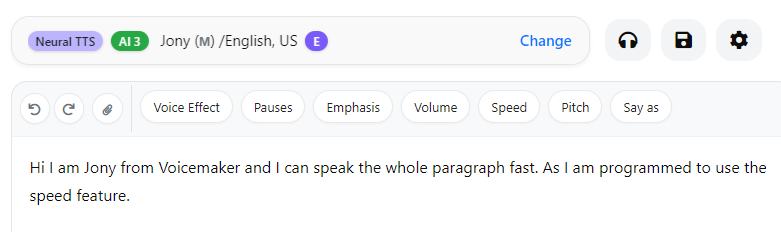
Step 1: Enter your text in the editor and select your preferred voice.
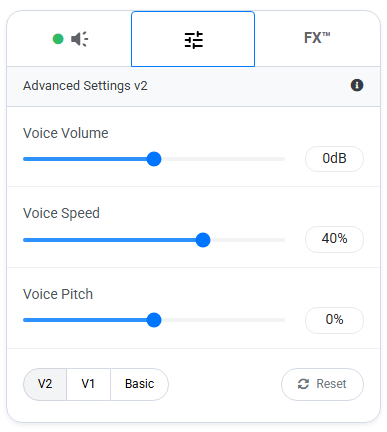
Step 2: In the right sidebar, locate Voice Settings icon and adjust the Speed slider.
- Increasing the value will make the speech faster.
- Decreasing the value will make the speech slower, which can make the voice sound more relaxed.
Step 3: Click Convert to Speech to generate the audio.

Here in the above example I have increased the value of Speed and the result is as follows.
Adjusting the speed for specific parts of the text
Step 1: Enter your text in the editor and select the word or sentence where you want to change the speed.
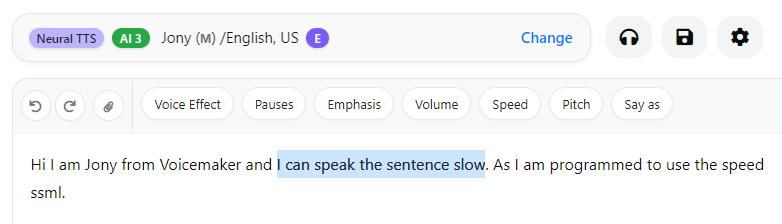
Step 2: Click on the Speed button from the top bar. In the dropdown, adjust the slider to the desired value and click Submit.
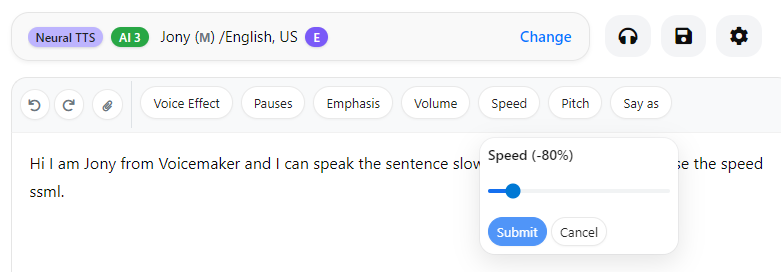
This will apply the speed SSML tag to the selected text.
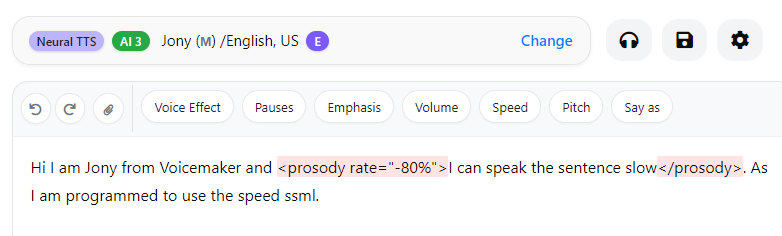
Step 3: Select your preferred voice and click Convert to Speech to generate the final audio.
Here is the final result of the above scenario
Important note
Speed adjustments through SSML are intentionally subtle. Applying very high or very low speed values can make the speech sound unnatural, so moderate adjustments are recommended for the best listening experience.